
Reading a 100-page research paper, business report, legal document, or technical manual from beginning to end is not always practical. The information you need may be buried several pages deep, while the document itself contains sections that are irrelevant to your immediate task.
An AI PDF summarizer can solve that problem by analyzing a document and producing a shorter version of its key information. The better tools go beyond simple summaries: they can answer questions, extract important facts, identify themes, compare documents, and point you back to the original pages.

In 2026, you have more choices than ever. Some tools are designed specifically for chatting with PDFs, while others combine summarization with PDF editing, research, note-taking, or broader AI assistants.
This guide compares the 15 best AI PDF summarizers for different needs, including students, researchers, professionals, businesses, and casual users.
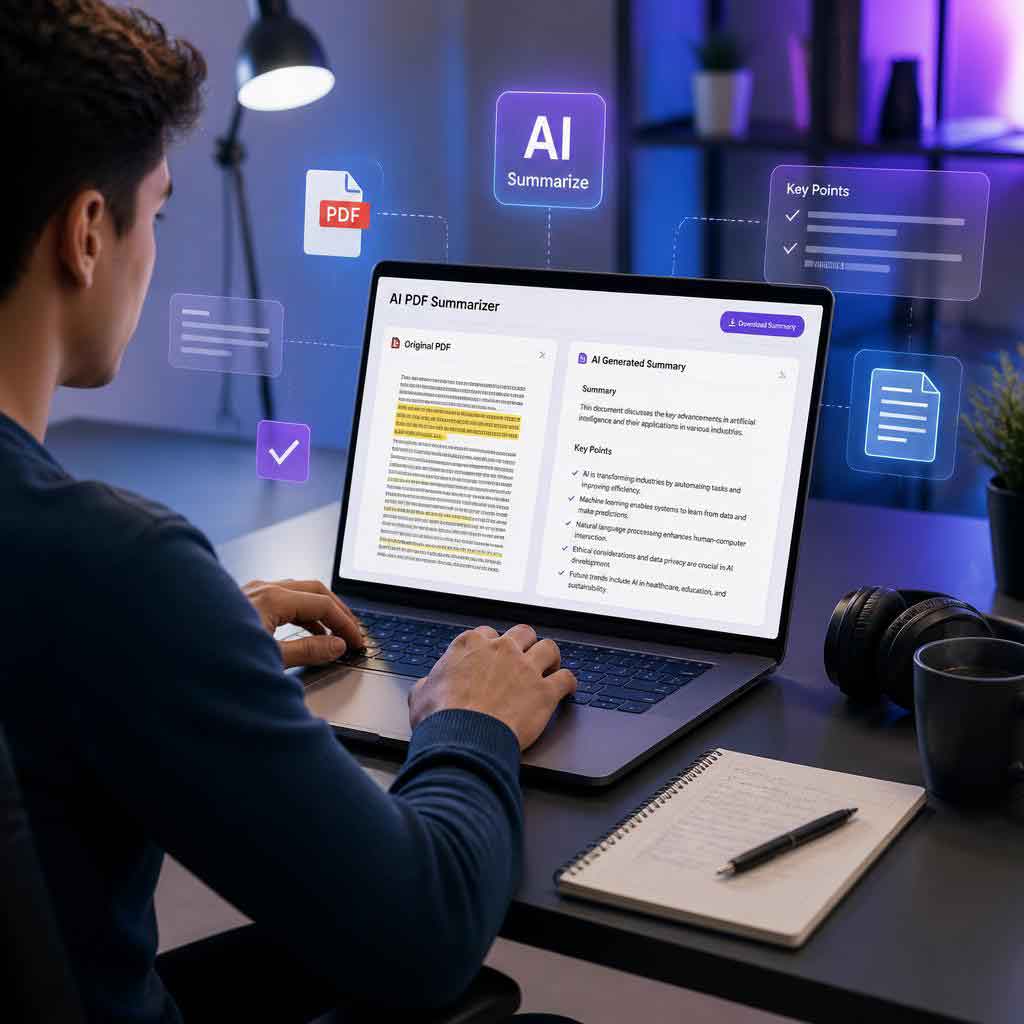
Quick pick: Adobe Acrobat AI Assistant is a strong all-around choice for people who already work extensively with PDFs. ChatPDF is excellent for quick PDF conversations and summaries, while NotebookLM is particularly useful for research involving multiple sources.
Quick Comparison: Best AI PDF Summarizers
| Tool | Best For | Key Strength |
|---|---|---|
| Adobe Acrobat AI Assistant | Professionals | PDF summaries with source-linked insights |
| ChatPDF | Students & researchers | Fast PDF summaries and document Q&A |
| Google NotebookLM | Research | Multi-source research and citations |
| Google Gemini | Google users | PDF analysis and summaries |
| ChatGPT | General-purpose analysis | Flexible document analysis and custom prompts |
| Claude | Long-document analysis | Strong reasoning and document conversations |
| Smallpdf AI | Quick online summaries | Simple browser-based workflow |
| Foxit AI | Large document workflows | Summarizing multiple documents |
| PDFelement AI | PDF editing + AI | Summarization combined with PDF tools |
| UPDF AI | PDF productivity | Summarization, OCR, and PDF management |
| QuillBot PDF Summarizer | Simple summaries | Easy online summarization |
| Humata | Research & teams | PDF Q&A and document analysis |
| AskYourPDF | PDF conversations | Interactive document research |
| PDFgear | Free PDF workflows | PDF reading and AI assistance |
| Perplexity | Research | Document analysis combined with web research |
What Is an AI PDF Summarizer?
An AI PDF summarizer is a software tool that analyzes the contents of a PDF and creates a condensed version containing the most important information.
Instead of manually reading every paragraph, you can upload a document and request things such as:
- A short summary
- Key points
- Chapter-by-chapter notes
- Important findings
- Executive summaries
- Definitions
- Action items
- Research conclusions
- Questions and answers
- Comparisons between documents
Modern tools typically use natural language processing and large language models to understand the document’s structure and meaning.
The best AI PDF summary tool should not simply shorten text. It should help you understand the document and quickly locate the evidence behind important claims.
15 Best AI PDF Summarizers in 2026
1. Adobe Acrobat AI Assistant — Best Overall for PDF Work
Adobe Acrobat AI Assistant is one of the strongest options if PDFs are already central to your workflow.
Its generative summary feature can create an overview of a document, organize information by section, highlight important ideas, and provide links back to relevant content. Adobe also supports questions about PDFs, with responses that can reference source locations.
Why choose Adobe Acrobat?
- Structured PDF summaries
- Section-based overviews
- Follow-up questions
- Source-linked responses
- Multi-document workflows through PDF Spaces
- Desktop, web, and mobile support
- Useful for reports, contracts, research papers, and business documents
Adobe’s online summarizer also accepts formats beyond PDF, including DOCX, PPTX, TXT, and RTF.
Best for: Professionals, businesses, researchers, and existing Acrobat users.
2. ChatPDF — Best for Students and Researchers
ChatPDF is built specifically around the idea of having a conversation with your documents.
Upload a PDF, generate a summary, and then ask follow-up questions about specific sections. Its PDF Summary feature includes page references so you can return to the original document and verify information.
It is particularly useful for:
- Research papers
- Academic articles
- Textbooks
- Reports
- Technical documents
- Study materials
ChatPDF also supports multi-file conversations and can work with PDFs in multiple languages.
Best for: Students who want a straightforward PDF summarizer AI with document Q&A.
3. Google NotebookLM — Best for Research
Google NotebookLM is particularly valuable when your project involves multiple sources rather than one PDF.
You can provide PDFs and other sources, then ask questions about the material. NotebookLM is designed to ground its responses in your uploaded sources and provides citations so you can trace information back to the source material.
This makes it useful for:
- Literature reviews
- Academic research
- Research projects
- Comparing multiple reports
- Organizing reference material
- Studying several related documents
Instead of simply asking, “Summarize this PDF,” you can build a research workspace around an entire collection of documents.
Best for: Researchers, students, writers, and anyone working with multiple sources.
4. Google Gemini — Best for Google Ecosystem Users
Gemini can analyze uploaded documents and provide summaries, answers, and insights. Google also supports PDF analysis in Gemini-related Drive workflows.
This is particularly convenient if your documents already live in Google Drive.
You can use Gemini to:
- Summarize PDFs
- Ask questions about documents
- Extract information
- Compare information across sources
- Generate new content based on a PDF
For people already using Google Workspace, the integration can make document analysis feel more natural.
Best for: Google Workspace users and people who want a general-purpose AI assistant for PDFs.
5. ChatGPT — Best for Flexible PDF Analysis
ChatGPT can analyze uploaded PDFs and perform tasks such as summarization, information extraction, rewriting, and document-based analysis.
Its biggest advantage is flexibility.
Instead of requesting only a basic summary, you can ask for something more specific:
“Summarize this research paper in 10 bullet points and separate the methodology, findings, limitations, and conclusion.”
You can also ask it to:
- Explain difficult sections
- Extract statistics
- Create study notes
- Turn a report into an outline
- Identify important terminology
- Compare sections
- Create questions from a document
However, document capabilities can vary by model, plan, and workspace configuration, so check the capabilities available to your account before relying on a specific feature.
Best for: Users who want highly customizable PDF analysis.
6. Claude — Best for Long-Form Document Reasoning
Claude is another strong option for working with lengthy documents and asking detailed questions about their contents.
Its usefulness goes beyond generating a short abstract. You can ask it to analyze arguments, explain concepts, identify themes, or restructure information from a document.
For example, instead of:
“Summarize this PDF.”
You can ask:
“Explain the author’s main argument, identify the three strongest pieces of evidence, and list any limitations discussed.”
That makes Claude useful when understanding and reasoning about a document matters more than simply shortening it.
Best for: Professionals, researchers, writers, and users analyzing complex documents.
7. Smallpdf AI PDF Summarizer — Best for Quick Online Summaries
Smallpdf offers a browser-based AI PDF summarizer designed for quick document processing.
Its summarizer can work with PDFs and other document formats, and Smallpdf says it can also summarize scanned PDFs. It supports desktop and mobile workflows without requiring traditional PDF software installation.
Advantages
- Simple interface
- Browser-based
- Supports multiple file types
- Scanned-PDF support
- Summary and chat functionality
- Useful on multiple devices
Best for: People who want a quick, uncomplicated online PDF summarizer.
8. Foxit AI — Best for Large Document Workflows
Foxit AI is worth considering if you regularly work with many documents.
Its online summarizer supports multiple files and a broad range of formats. Foxit currently states that its online tool can process up to 100 files, with PDFs and other supported documents subject to file-size and page limits.
This makes it useful for workflows involving:
- Business reports
- Research documents
- Contracts
- Presentations
- Spreadsheets
- Technical documentation
Best for: Professionals who need document summarization as part of a broader PDF workflow.
9. Wondershare PDFelement AI — Best for PDF Editing and Summarization
PDFelement combines traditional PDF editing with AI-powered document analysis.
Its AI features can summarize PDFs, generate abstracts, extract keywords, answer questions, and work across multiple documents. It can also convert summaries into formats such as Markdown and generate knowledge cards or mind maps.
That combination is useful if you don’t want to switch between a PDF editor and a separate AI PDF reader.
Best for: Users who need both PDF editing and AI-powered document analysis.
10. UPDF AI — Best for PDF Productivity
UPDF is another all-in-one PDF application with AI summarization features.
It supports summarizing entire documents, selected content, pages, or specific passages. Its broader PDF functionality can also be useful for scanned documents and OCR-based workflows.
Good use cases
- Summarizing lengthy PDFs
- Research papers
- Scanned documents
- Extracting key information
- Asking questions about documents
- Working with PDFs across devices
Best for: Users looking for a dedicated PDF application with integrated AI.
11. QuillBot PDF Summarizer — Best for Simple Summaries
QuillBot’s PDF summarizer is designed for straightforward online document summarization.
You upload a PDF, let the tool extract the important ideas, and review the generated summary. QuillBot currently lists a 25 MB maximum file size for its online PDF summarizer.
It is a good choice when you don’t need a full PDF editing environment.
Best for: Students, writers, and casual users who want quick summaries.
12. Humata — Best for Interactive Document Research
Humata is designed around asking questions about documents rather than simply producing a one-time summary.
This makes it useful when you need to repeatedly investigate a PDF. For example, a researcher might ask:
- What is the central argument?
- What methodology was used?
- What were the main findings?
- What limitations did the authors identify?
- Which section supports this conclusion?
That workflow is more powerful than simply generating a paragraph-long summary.
Best for: Researchers and teams who frequently need to interrogate documents.
13. AskYourPDF — Best for Conversational PDF Analysis
AskYourPDF focuses on turning static documents into interactive conversations.
It can be useful for asking targeted questions about a document after generating an initial summary. This approach is especially helpful when you already know what information you’re looking for.
For example:
“What does this report say about customer retention?”
is often more useful than requesting a generic summary.
Best for: Users who want conversational PDF question answering.
14. PDFgear — Best for Free PDF Productivity
PDFgear combines PDF reading and editing functionality with AI-powered assistance.
It can be useful when your workflow involves more than summarization, such as reading, organizing, editing, or asking questions about PDFs.
A dedicated PDF application can also be more convenient than constantly uploading documents to separate online services.
Best for: Users looking for a broader PDF productivity tool with AI features.
15. Perplexity — Best for PDF Analysis Plus Web Research
Perplexity is particularly interesting when your task requires both document analysis and external research.
For example, you might upload a research paper and then investigate how its findings compare with newer information available online.
This makes it different from a basic AI tool to summarize PDFs. The goal is not only to understand the uploaded document but also to investigate related information.

Best for: Researchers, analysts, journalists, and users conducting source-driven research.
How Does an AI PDF Summarizer Work?
Although different platforms use different technologies, the general workflow looks like this:
1. PDF text extraction
The system first needs to access the document’s content. For ordinary text PDFs, this can involve extracting the selectable text.
For scanned documents, OCR (optical character recognition) may be required to convert images of text into machine-readable content.
2. Document analysis
The system analyzes the extracted information and attempts to understand:
- Headings
- Paragraphs
- Sections
- Key terms
- Relationships between ideas
- Important facts
- Conclusions
3. Information ranking
The tool determines which information is most relevant to the requested summary.
4. Summary generation
The system creates a shorter version of the document while attempting to preserve its central meaning.
5. Follow-up analysis
Advanced tools let you continue asking questions about the document rather than stopping at the first summary.
This is where an AI PDF reader and summarizer becomes significantly more useful than a traditional summarization tool.
How to Summarize a PDF With AI
You can usually summarize a PDF in five simple steps.
Step 1: Choose your tool
Select a tool based on your requirements. For example, use ChatPDF for quick PDF conversations, NotebookLM for multi-source research, or Acrobat when PDF management is already part of your workflow.
Step 2: Upload the PDF
Upload the document or add it from a supported cloud storage service.
Step 3: Generate the initial summary
Start with a simple request such as:
“Summarize this PDF and give me the five most important points.”
Step 4: Ask targeted questions
Don’t stop at the first response. Ask:
- What is the main argument?
- What evidence supports the conclusion?
- What are the limitations?
- Which statistics are most important?
- What should I remember from this document?
Step 5: Verify important information
Always return to the original PDF before using important facts, statistics, quotations, legal interpretations, medical information, or research findings.
How to Choose the Best AI PDF Summarizer
Not every PDF summarizer is equally suitable for every job.
Consider these factors before choosing one.
1. Summary quality
The tool should preserve the document’s central ideas rather than simply producing shorter text.
2. Source references
Page references or citations are extremely useful because they let you verify the generated information.
3. Large-document support
If you regularly work with books, technical manuals, or lengthy research papers, check how the tool handles large files.
4. OCR support
If your PDFs are scanned documents, OCR can make a major difference.
5. Multiple-document analysis
For research projects, look for tools that can compare or analyze multiple PDFs together.
6. Privacy and security
Never assume that every online PDF service handles sensitive files in the same way.
Before uploading confidential documents, check:
- Data retention policies
- Encryption
- Whether uploaded files are used for model training
- Account and access controls
- Enterprise security features
7. Export options
If you need to reuse your summary, check whether the tool can export or copy results into formats such as Word, Markdown, or plain text.
Best AI PDF Summarizer by Use Case
| Use Case | Recommended Tools |
|---|---|
| Best overall | Adobe Acrobat AI Assistant |
| Students | ChatPDF, QuillBot |
| Academic research | NotebookLM, ChatPDF |
| Multiple PDFs | NotebookLM, Acrobat, Foxit |
| PDF editing + AI | Acrobat, PDFelement, UPDF |
| Quick online summaries | Smallpdf, QuillBot |
| Custom document analysis | ChatGPT, Claude |
| Google Drive workflows | Gemini |
| Scanned PDFs | Smallpdf, UPDF, PDFelement |
| Professional documents | Acrobat, Foxit, PDFelement |
| Web + document research | Perplexity |
Best Practices for PDF Summarization
Getting a useful summary depends partly on how you ask.
Instead of saying:
“Summarize this.”
Try a more specific prompt:
“Summarize this 40-page report in 10 bullet points. Focus on the findings, statistics, risks, and recommendations.”
For academic research:
“Summarize this research paper under the headings: research question, methodology, findings, limitations, and conclusion.”
For business:
“Create an executive summary containing the main findings, business risks, financial implications, and recommended actions.”
For studying:
“Turn this chapter into concise study notes with key definitions, concepts, examples, and five review questions.”
Specific instructions generally produce more useful results than vague requests.
Common Mistakes to Avoid
Relying on the summary without checking the source
A generated summary is a starting point, not automatically the final authority.
Ignoring scanned pages
If the PDF is image-based, poor text extraction can affect the result. Run OCR when necessary.
Asking overly broad questions
“Tell me everything important” can produce a generic response.
Define what matters to you.
Uploading confidential documents without checking privacy policies
Contracts, financial records, internal business documents, and other sensitive materials deserve extra caution.
Using summaries instead of reading critical information
For legal, financial, medical, academic, or compliance-related decisions, use the summary to navigate the document—not as a substitute for reviewing the original source.
Expert Tips for Better PDF Summaries
Tip 1: Ask for structure
Specify the sections you want. This makes the result easier to scan.
Tip 2: Request evidence
Ask the tool to identify the page, section, or passage supporting important claims whenever the feature is available.
Tip 3: Summarize in stages
For very long documents, first create an overall summary, then investigate individual sections.
Tip 4: Separate facts from interpretation
Ask the tool to distinguish what the document explicitly states from conclusions inferred from the content.
Tip 5: Compare multiple documents
If you’re doing research, don’t analyze each document in isolation. Ask a suitable multi-document tool to identify similarities, disagreements, and gaps.
Tip 6: Use the original PDF as the source of truth
Even a high-quality AI document summarizer can misunderstand context, omit a qualification, or produce an incorrect interpretation.
Frequently Asked Questions
What is the best AI PDF summarizer in 2026?
There is no single best option for every user. Adobe Acrobat AI Assistant is a strong all-around choice for professional PDF workflows, while ChatPDF is excellent for straightforward PDF summaries and questions. NotebookLM is particularly strong for research involving multiple sources.
Is there a free AI PDF summarizer?
Yes. Several services offer free or limited free PDF summarization. ChatPDF, Smallpdf, QuillBot, and other platforms provide free options, although usage limits and available features can change.
For example, ChatPDF currently states that users can summarize up to two PDFs per day for free without registration.
Can I summarize a PDF with ChatGPT?
Yes. ChatGPT supports PDF uploads and can summarize documents, extract information, answer questions, and perform other document-analysis tasks. Available file capabilities can vary depending on the model, plan, and workspace.
Can AI summarize a scanned PDF?
Yes, but the tool needs to be able to interpret the scanned content. OCR is particularly important for image-based PDFs. Some dedicated PDF tools explicitly support scanned-PDF summarization, including Smallpdf and UPDF.
Can an AI PDF summarizer summarize multiple PDFs?
Yes. Some tools support multi-document workflows. NotebookLM is designed around multiple sources, while Adobe Acrobat’s PDF Spaces can combine multiple files and links for analysis.
Are AI-generated PDF summaries accurate?
They can be highly useful, but you should not assume that every generated statement is correct. Accuracy depends on document quality, extraction, context, the tool, and the complexity of the material.
For important information, verify the summary against the original document—especially when dealing with legal, financial, scientific, or compliance-related content.
What is the best PDF summarizer for students?
ChatPDF, NotebookLM, QuillBot, and ChatGPT are strong options for students. ChatPDF is particularly convenient for asking questions about individual research papers, while NotebookLM is better suited to organizing multiple sources.
Can an AI PDF summarizer answer questions about a document?
Yes. Many modern tools combine summarization with document Q&A. You can upload a PDF, ask a question, and receive an answer based on the document.
This is often more useful than generating a summary first because you can ask directly for the information you need.


Pingback: 15 Best AI Tools for Research in 2026: Find, Analyze, and Organize Information Faster